What is SoftPhone?
SoftPhone is a mobile application for iOS and Android devices that functions as a virtual phone. It allows you to add a SIP extension to your smartphone, enabling you to make and receive calls using your business line from anywhere. In this document, we will explain how to install, configure, and use this application effectively.
Step-by-step guide
Please ensure your device is upgraded to the latest version of its operating system before proceeding.
Download the application
Use the links below to download the application from the app store relevant to your device.
Open the application
Once the application has downloaded to your device, locate and open it. You will be asked to grant permission for access to components such as Contacts and the Microphone. Please accept all of these requests to ensure the app functions correctly.
Open the configuration
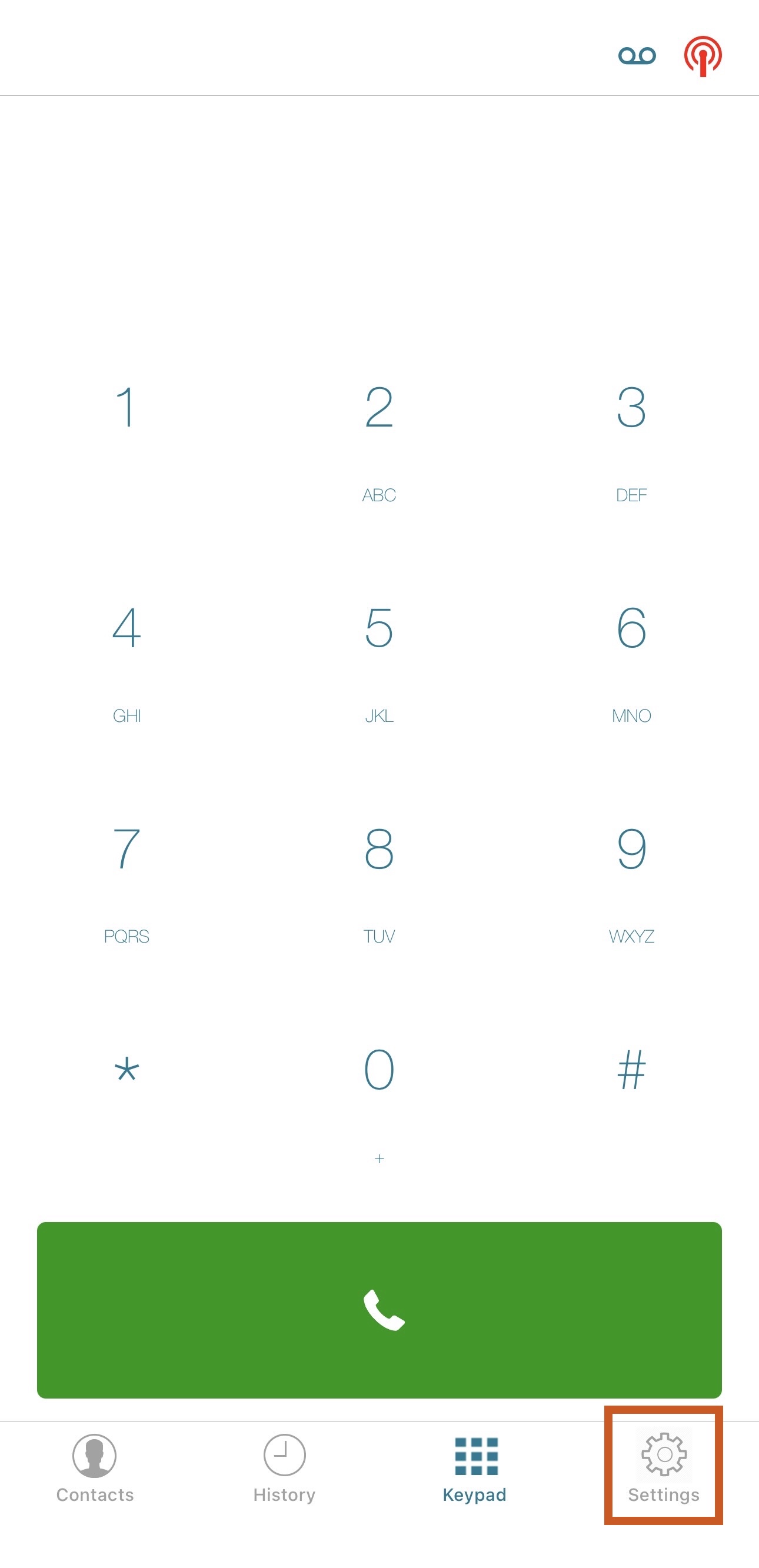
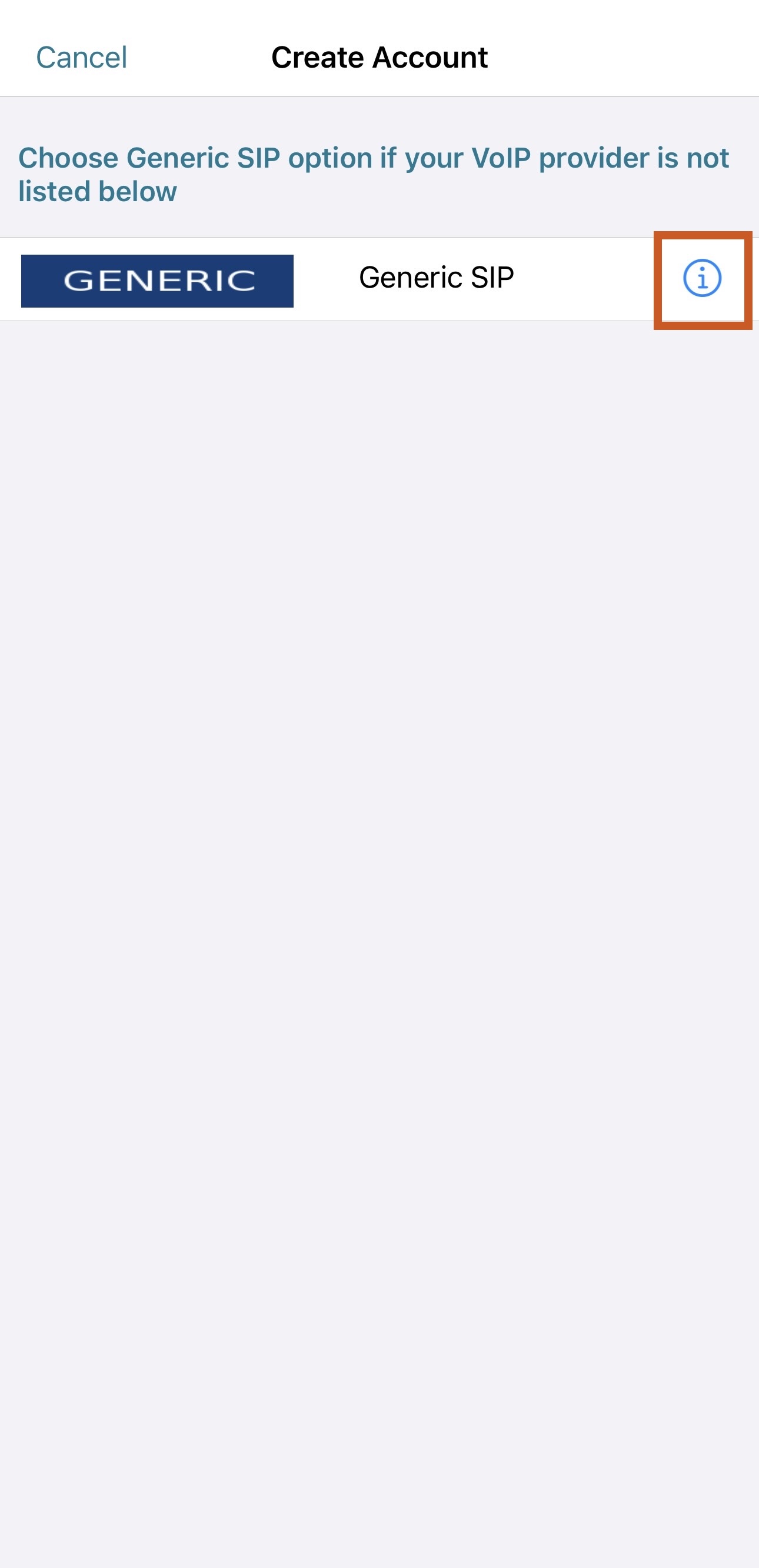
Once you have opened the application on your mobile, tap the Settings icon at the bottom right corner. Then, tap on the Information icon next to Generic SIP.
Enter the parameters
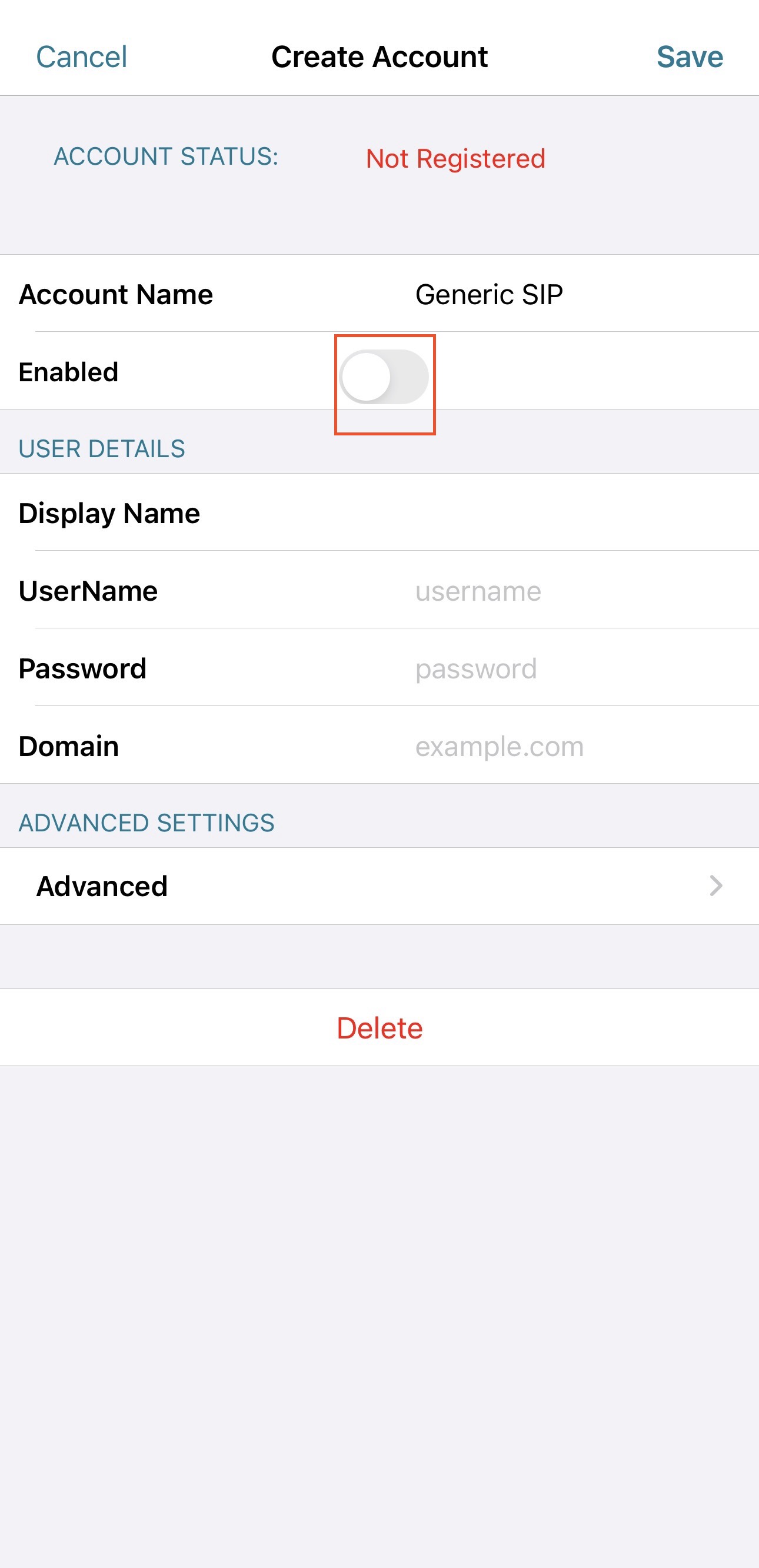
In the section that opens, you will need to enter the parameters received from London ICT.
Below is an example of the details you need to enter into the settings:
"Account Name": London ICT
"Display Name": Received via email
"UserName":     Received via email
"Password":     Received via email
"Domain":       Received via email
Once you have entered all the information, tap Done at the top right corner, and then ensure the account is toggled to Enabled.
Make sure that you enter the domain in the exact format shown below, without any http or https.
Format: pbx<ID>.zonect.net:6060
Check the registration
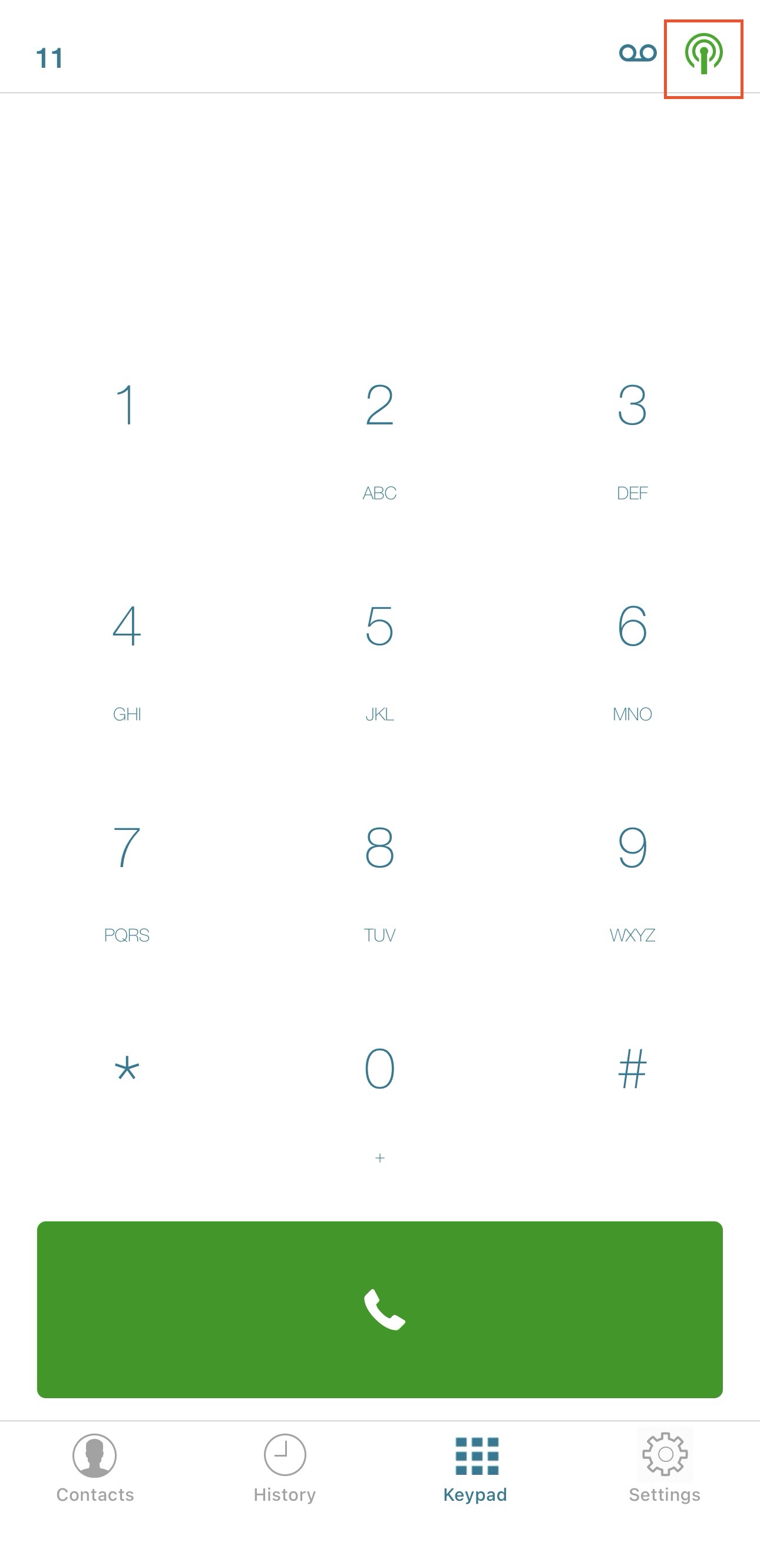
If everything is set up correctly, tap on the Keypad icon at the bottom of the application. On this page, you should see the signal icon at the top right corner turn green, indicating it is registered. If it remains red, please check the details you added in the previous step.
Make or receive calls
You should now be able to simply make or receive calls by dialling numbers on the keypad. If you still encounter any issues, please get in touch with one of our expert engineers at support@londonict.com.