What London ICT Phone is
London ICT Phone is your work phone, running on your computer instead of on a desk handset.
It uses the same extension number as your desk phone. People ring you the same way they always have. You answer with a headset, and your computer does the rest.
This guide is for Windows computers. If you want your extension on a mobile instead, see Using SoftPhone on iPhone & Android.
Before you start
You need two things, and both of them arrive in the welcome email from London ICT:
A link to download London ICT Phone. The file is called LondonICTPhone-x.xx.x-setup.exe, where x.xx.x is the version number.
A ZIP file attached to the email. Inside it is a small file ending in .ini that holds your extension number and the details your computer needs to connect. You unzip it and load it into the app in Part 2.
Save both of them somewhere you can find again. Your Downloads folder is fine.
The pictures in this guide were taken from one particular version, so the version number you see on screen may be a little different from the one in the pictures. Everything else works the same way.
If you have not had a welcome email from London ICT, stop here and email support@londonict.com. Without the settings file the app has nothing to connect to.
A headset makes a big difference. A laptop's built-in microphone picks up the sound coming out of the speakers, so the person you are talking to hears themselves echo back.
You do not need anything else. There is no licence key to type in, no password to remember and no account to create.
Part 1 — Put the app on your computer
This takes about two minutes. Windows will ask you a few questions along the way, and all of them are normal.
Open the file you downloaded
Open your Downloads folder and find the file from your welcome email. Double-click it.
Windows asks whether you are sure
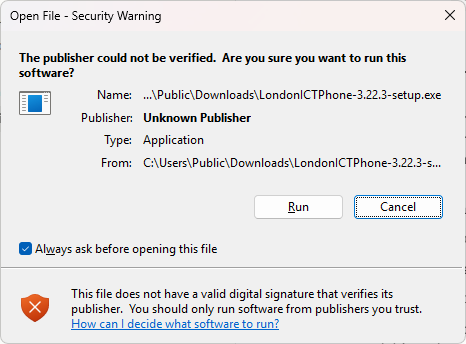
Windows shows this box for programs it has not seen many times before. It says Unknown Publisher, which sounds alarming but only means the file has not been through a paid certificate process yet.
Click Run.
Only click Run if you got the download link from your own welcome email from London ICT. If the file came from anywhere else, close the box and email support@londonict.com first.
Some computers show a blue box saying Windows protected your PC instead. Click More info, then Run anyway.
Windows asks permission to make changes
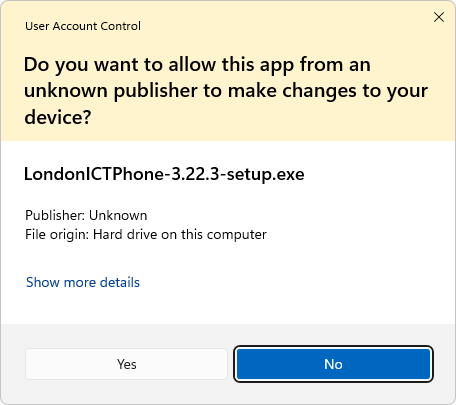
Click Yes.
If this box asks you to type an administrator password and you do not have one, your computer is managed by someone else. Send this guide to whoever looks after your computers, or email support@londonict.com.
Accept the licence
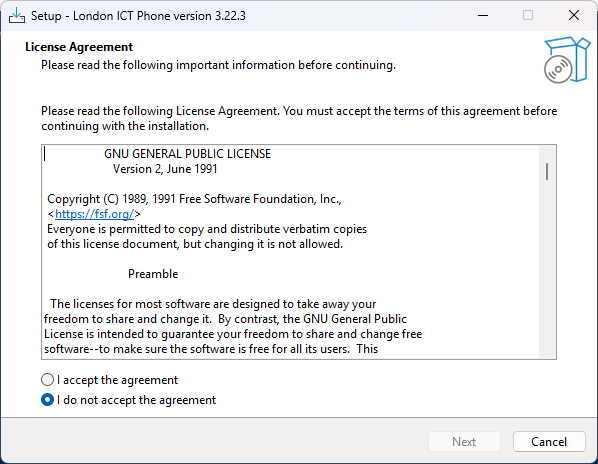
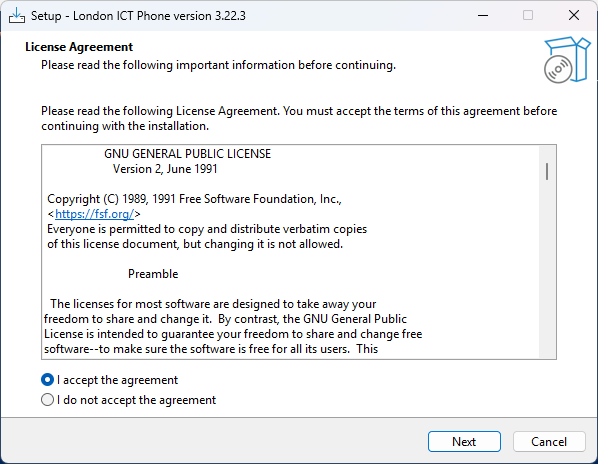
Click I accept the agreement, then Next.
Next stays greyed out until you choose one of the two circles. If nothing seems to be happening, that is why.
Choose where it goes
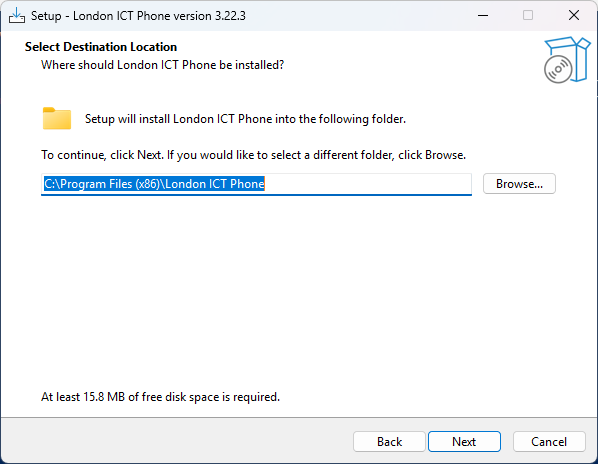
Leave the folder exactly as it is and click Next.
Choose the Start menu folder
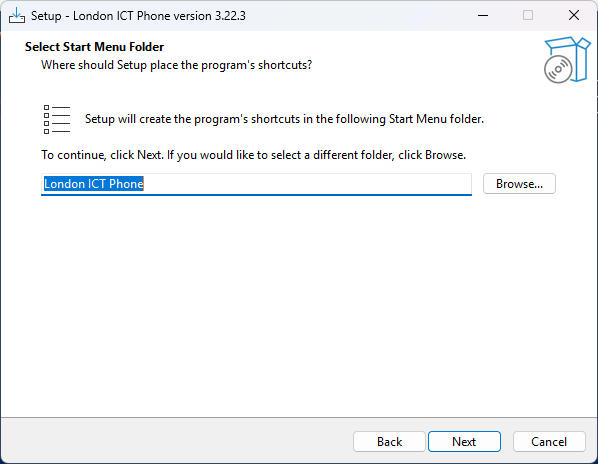
Leave this as it is too, and click Next.
Ask for a desktop shortcut
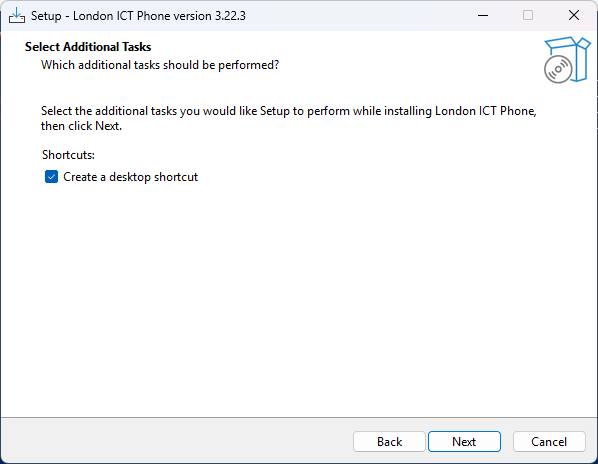
Leave Create a desktop shortcut ticked. It puts an icon on your desktop so the app is easy to find later.
Click Next.
Start the installation
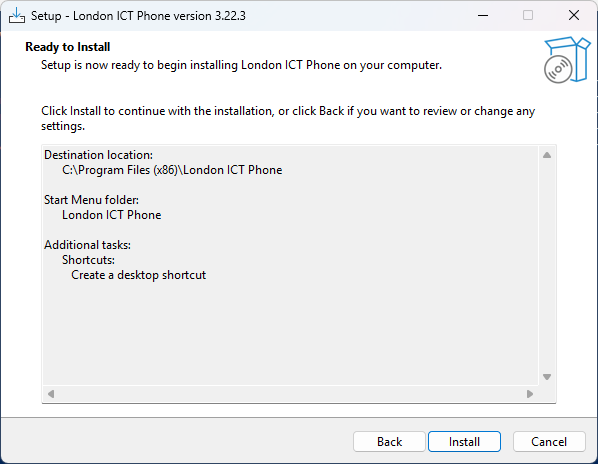
Check the list, then click Install. It takes a few seconds.
Read the note about source code
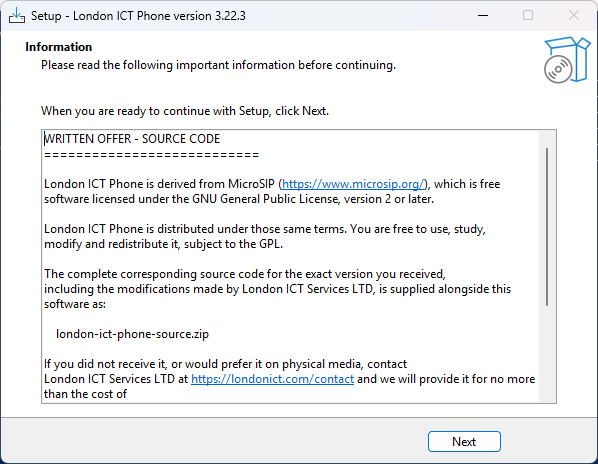
London ICT Phone is built on a free, open-source phone app called MicroSIP. The licence it uses says we have to tell you that, and tell you how to get the code. That is all this page is doing.
You do not need to do anything with it. Click Next.
Finish
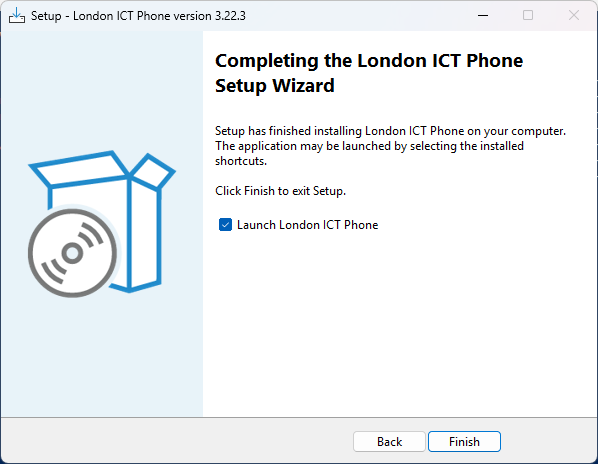
Leave Launch London ICT Phone ticked and click Finish. The app opens on its own.
Let it through the firewall
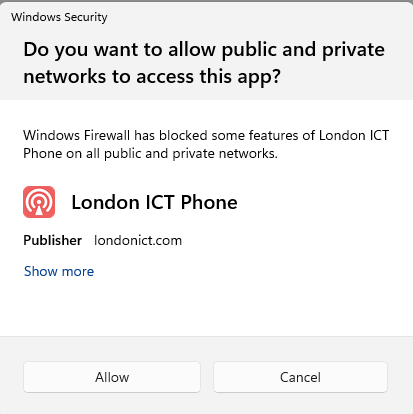
The very first time the app runs, Windows asks whether to let it use the network. Click Allow.
This is what lets calls reach you. If you click Cancel by mistake, people may not be able to ring you — there is a fix further down under If something goes wrong.
That is the app installed. Now it needs your details.
Part 2 — Load your settings
Remember the ZIP file from your welcome email. Your settings file is inside it. You only ever do this once.
Unzip the file from your welcome email
Your settings file arrives inside a ZIP file, and the app cannot open it while it is still in there. Take it out first.
Find the attachment in your Downloads folder, right-click it, choose Extract All…, then click Extract.
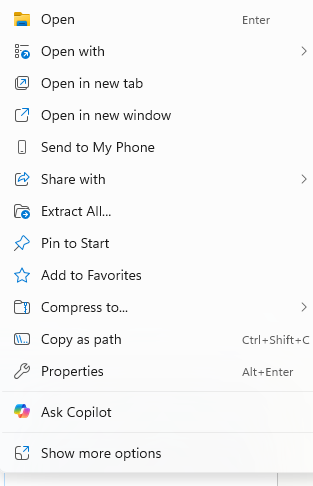
Windows puts the file in a new folder with the same name as the ZIP. The file inside ends in .ini — that is the one you need next.
The app starts with no account
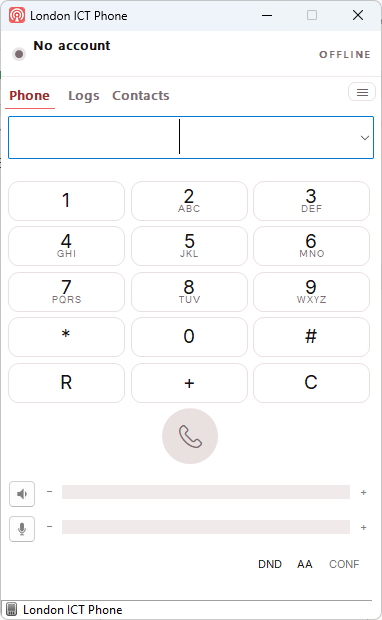
It says No account and OFFLINE. That is exactly right for now — it has nothing to connect to yet.
Open the menu
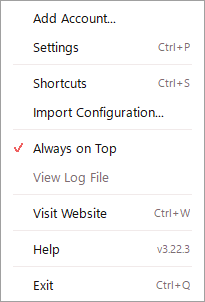
Click the ☰ button near the top right of the window, then click Import Configuration…
Choose your settings file
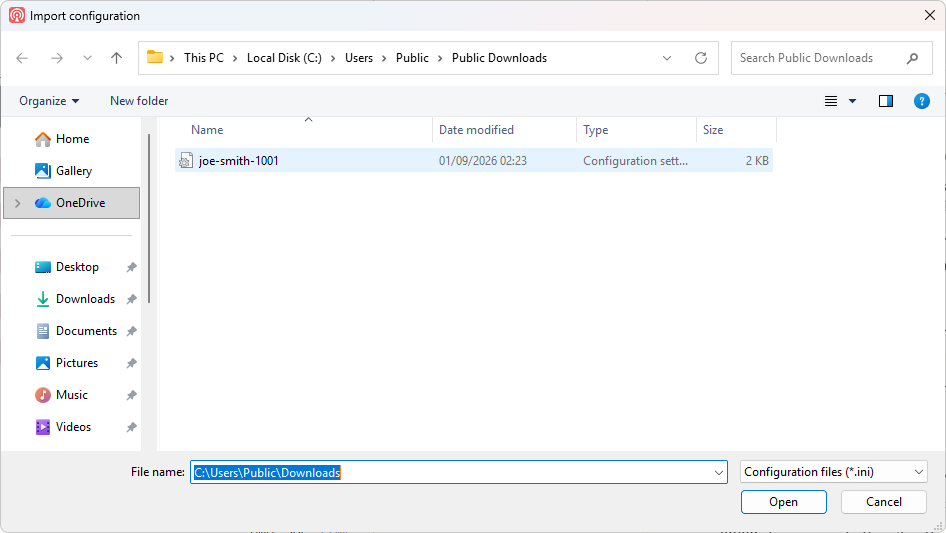
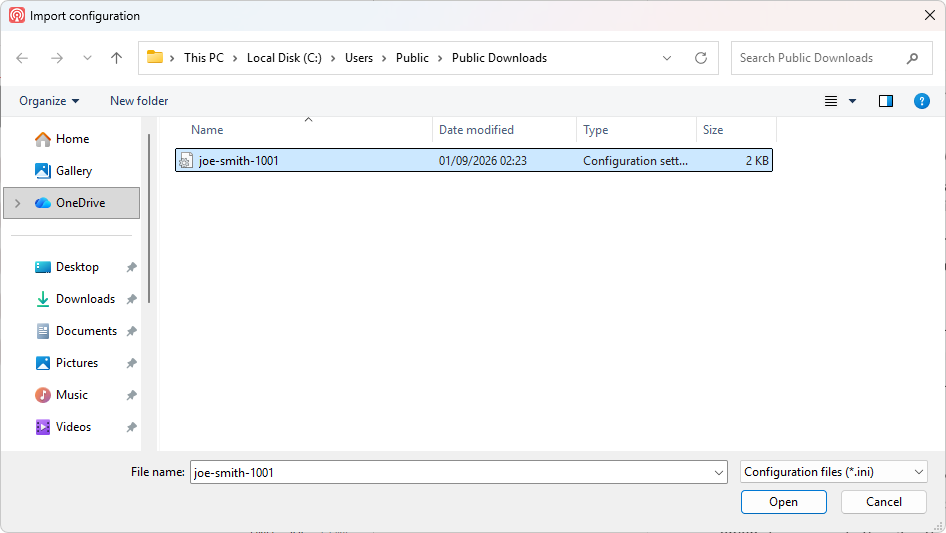
Go to wherever you saved the file from your welcome email. It ends in .ini.
Click it once, then click Open.
The folder in the picture is only an example. Yours will be wherever you saved the file — most likely Downloads. What matters is that you can see the file and click it.
Cannot see your file? This window only lists files ending in .ini, so an empty-looking folder usually means the ZIP has not been unzipped yet. Remember the file is in the new folder Windows made, not loose in Downloads.
Confirm it is the right account
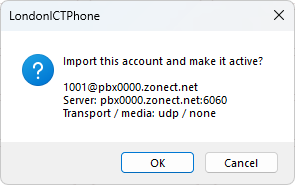
The app shows you what it found: your extension number and the phone system it will connect to.
Click OK.
Say yes to the rest of the settings
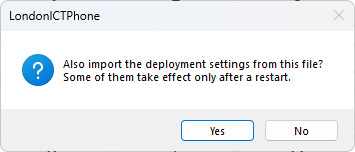
Click Yes. These are the sound and network settings we have already set up for you.
That is it
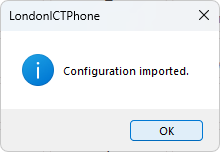
Click OK.
Check that it says Online
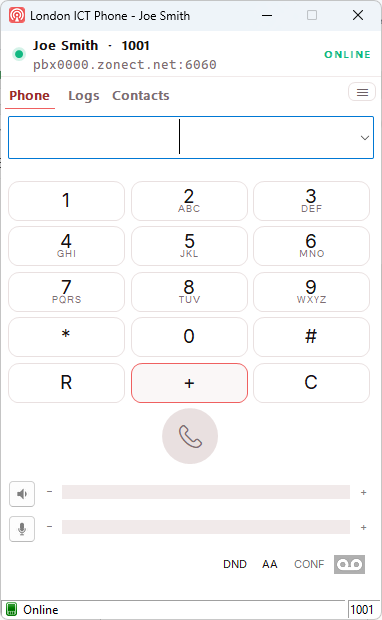
Your name and extension number appear at the top left, and ONLINE appears in green at the top right.
That means you are connected and ready to take calls.
Green ONLINE is the one thing worth remembering. If it ever says something else, the answer is almost certainly in If something goes wrong below.
Part 3 — Using it
Making a call
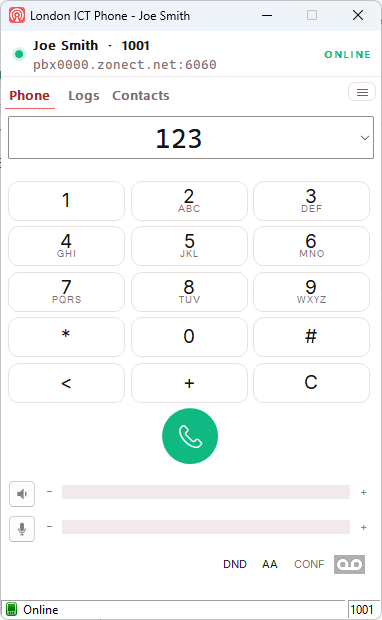
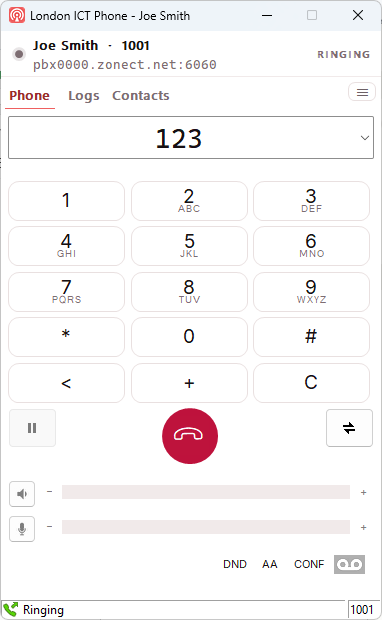
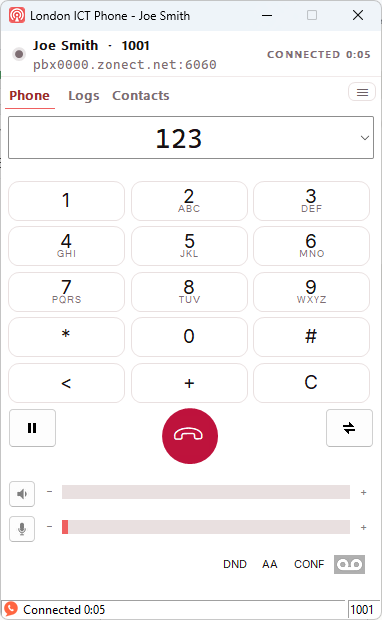
- Type the number. Use your keyboard, or click the buttons on screen. To ring someone in your own organisation, just type their extension — for example
1002. To ring anyone else, type the number the way you would from a normal phone. - Press the green button, or press Enter. It says RINGING while their phone rings.
- Talk. Once they pick up it says CONNECTED and a timer starts counting.
- Hang up with the red button.
Answering a call
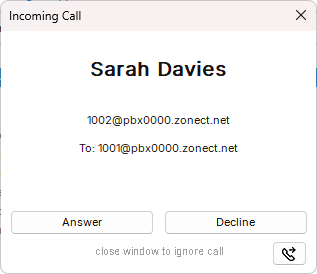
When someone rings you, a window appears with their name and number, and the phone rings out loud.
| You want to | Do this |
|---|---|
| Take the call | Click Answer |
| Send them away | Click Decline |
| Leave it ringing | Close the window — the call carries on to your voicemail or wherever it normally goes |
Where the app hides

Clicking the ✕ does not close London ICT Phone. It tucks it away next to the clock so it can still ring you.
To bring it back, look at the bottom right of your screen, near the clock. If you cannot see the icon, click the small ^ arrow to show the hidden ones. Click the London ICT Phone icon.
To close it properly, open the ☰ menu and click Exit.
Once it is properly closed, nobody can ring you until you open it again. Most people leave it running all day and let it sit by the clock.
The buttons along the bottom
| Button | What it does |
|---|---|
| DND | Do not disturb. Turns away incoming calls while it is switched on. |
| AA | Auto answer. Picks up calls by itself. Handy for a test, but leave it off day to day. |
| CONF | Conference. Becomes available during a call, to join calls together. |
| The tape icon | Rings your voicemail. It lights up when you have a message waiting. |
| The two sliders | The top one is how loud you hear people. The bottom one is how loud they hear you. |
The three tabs
| Tab | What it shows |
|---|---|
| Phone | The keypad, for making calls. |
| Logs | Your recent calls — made, taken and missed. |
| Contacts | People you save, so you can ring them without typing the number. |
Speed-dial buttons
If you ring the same people all day, you can give them a button.
Open the ☰ menu and click Shortcuts. Give each one a label — the name you want on the button — and the number to ring. Click OK, and the buttons appear on the main window.
Sound settings
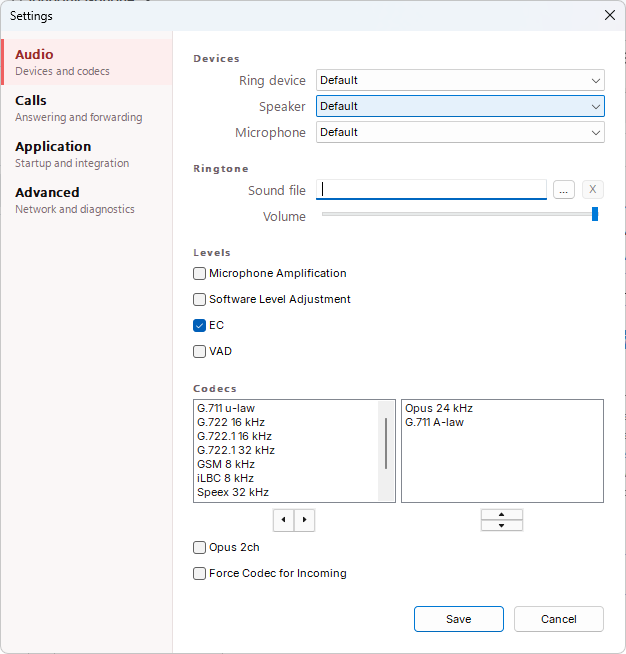
Open the ☰ menu and click Settings, or press Ctrl P.
The three boxes at the top are the ones that matter:
Where the ringing sound comes out. Set this to your laptop speakers, so you still hear it when your headset is off your head.
Where you hear the other person. Set this to your headset.
Which microphone they hear. Set this to your headset.
Click Save when you have finished.
Keyboard shortcuts
| Keys | What happens |
|---|---|
| Ctrl P | Open Settings |
| Ctrl S | Open Shortcuts, where you set up speed-dial buttons |
| Ctrl W | Open the London ICT website |
| Ctrl Q | Close London ICT Phone properly |
| Enter | Ring the number you have typed |
If something goes wrong
Nearly every problem shows itself in the same place: the words in the top right corner of the window. Start there.
It says REQUEST TIMEOUT
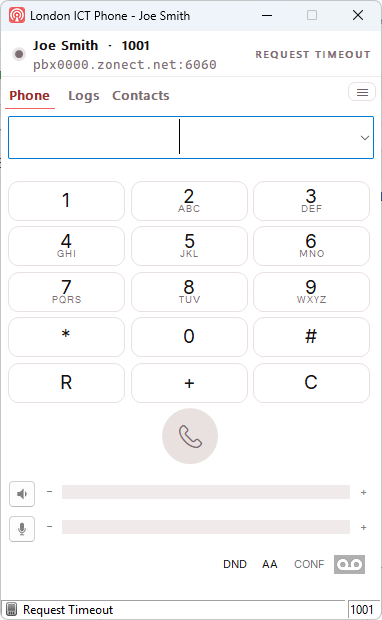
Your computer cannot reach the phone system at all. It is asking, and nothing is answering.
Work through these in order:
- Open a website in your browser. If nothing loads, your internet is down — fix that first and the phone will sort itself out.
- If you are on a work VPN, disconnect it and see whether the phone comes back. Some VPNs block the connection the phone needs.
- Restart London ICT Phone: ☰ menu → Exit, then open it again from the desktop icon.
- Try a different network — a phone hotspot is a quick test. If it works on the hotspot but not in the office, the office network is blocking it, and support@londonict.com can tell your network people exactly what to open.
It says INCORRECT PASSWORD
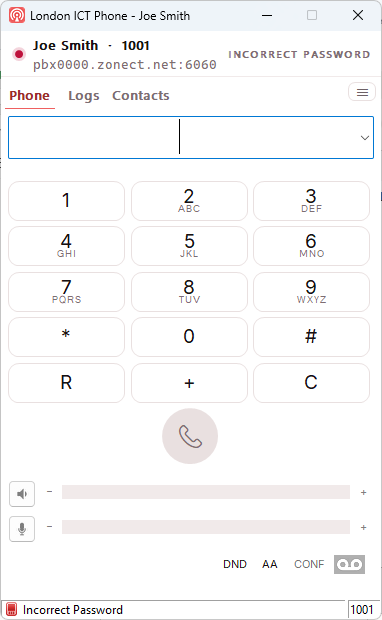
Your computer reached the phone system, but it would not let it in.
It means the details in your settings file no longer match what the phone system expects. Usually the extension has been rebuilt at our end, or an older settings file has been loaded over the top of a newer one.
Email support@londonict.com and ask for a fresh settings file, then load it again using Part 2 above.
Please do not try to type a password in yourself. The details are set up for you, and repeated wrong attempts can lock the extension out.
It still says OFFLINE and nothing else
It has not been given any details yet, or the details did not go in.
Look at the top left of the window. If it says No account, go back to Part 2 and load your settings file.
I cannot hear them, or they cannot hear me
Nine times out of ten this is the wrong device chosen.
Open ☰ → Settings and check Speaker and Microphone are both set to your headset, not to your laptop.
Then check the two sliders at the bottom of the main window are not dragged down to the left, and that your headset is not muted with its own button.
If they can hear you but you cannot hear them, it is the Speaker box. If you can hear them but they cannot hear you, it is the Microphone box.
I cannot hear it ring
Open ☰ → Settings and look at Ring device.
Set it to your laptop's own speakers rather than your headset. That way you still hear the ring when your headset is sitting on the desk.
Then check your computer's own volume is up and not muted.
Nobody can ring me, and I think I clicked Cancel on the firewall box
Easy to fix.
- Click Start and type
firewall. - Open Windows Defender Firewall.
- Click Allow an app or feature through Windows Defender Firewall.
- Click Change settings, find London ICT Phone in the list, and tick both boxes next to it.
- Click OK, then restart London ICT Phone.
If London ICT Phone is not in the list at all, close the app, open it again, and the firewall box should come back. Click Allow this time.
The folder looks empty when I try to choose my settings file
This is the most common stumble, and it has a simple cause.
The window that asks you to choose a file only lists files ending in .ini. Your welcome email sends a ZIP, and a ZIP is not a .ini — so until you unzip it, that window shows nothing at all.
Go back to Part 2, step 1 and unzip the file. Then look in the new folder Windows created, which has the same name as the ZIP. Your settings file is in there.
I cannot find my settings file at all
Go back to the welcome email from London ICT. The ZIP is attached to it.
If you have lost the email, email support@londonict.com and ask for a new one. Say which extension number you use if you know it.
Do not try to write the file yourself. It is made for you and it will not work if it is typed by hand.
Calls connect but cut off after about thirty seconds
This is a network problem rather than an app problem. Something between you and the phone system — usually a firewall or a router — is closing the connection while the call is still going.
Try the same call on a phone hotspot. If it holds up on the hotspot, the office network is the cause. Email support@londonict.com — this one needs your network looking at, and we can tell your network people exactly what to change.
Nothing happens when I click the desktop icon
It is probably already running and hiding by the clock.
Look at the bottom right of your screen, click the small ^ arrow, and see whether the London ICT Phone icon is there. Click it to bring the window back.
I am moving to a new computer
Install the app on the new computer using Part 1, then load the same settings file using Part 2. Nothing is tied to your old machine.
If you no longer have the ZIP from your welcome email, email support@londonict.com for a new one.
Please do not leave it running on both computers at once. Calls will only ring on one of them, and it may not be the one you are sitting at.
What is actually in the settings file?
Your extension number, the address of the phone system, your display name, and a password that is stored scrambled rather than as plain readable text.
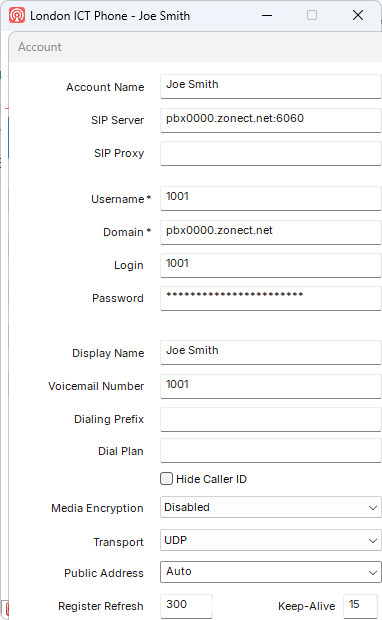
There is no need to open this window, and changing anything in it will stop your phone working. If something looks wrong, ask us for a new settings file rather than editing it by hand.
Please do not forward your settings file to anyone else. It is the key to your extension, and anyone who loads it can make calls that are billed to your organisation.
Still stuck?
Our engineers would rather hear from you early than late.